
You will be able to opt if an amp page for the story is required or not. You can also select the logo position in amp stories.
Ads can be rendered in amp pages. You just need to add the Ad code under AMP configuration in “Web Story Ad Unit Path”. Ad unit path needs to be added in the below format:
“/ad unit ID/ad unit name”.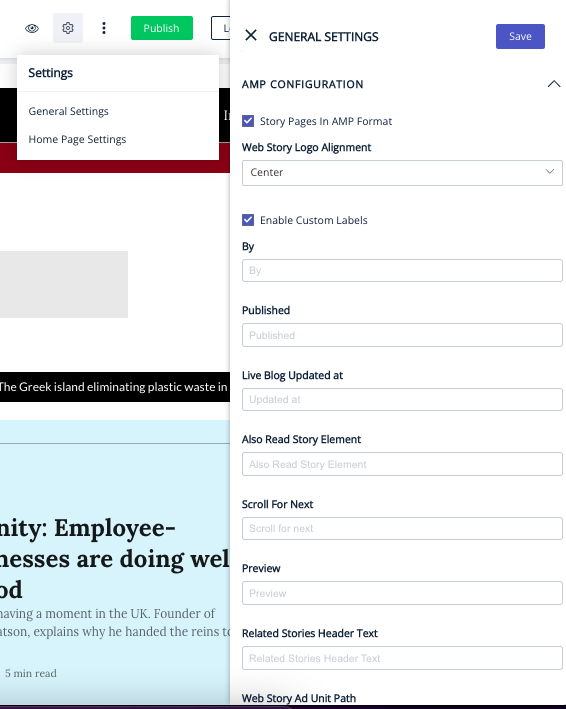
Page-Builder Release Note - 1st Aug 2023
MGID Support for Visual Stories
Pagebuilder now offers support for targeted ads from MGID within your visual stories. To enable this feature, follow these simple steps:
1. Navigate to PB (Pagebuilder) > General Settings > AMP Configuration.
2. Toggle on 'Show Ads' under 'Ads for Web Stories'.
3. Under 'Select Provider', choose MGID from the available options, which include Ad Manager, AdSense, and MGID.
Note: With this implementation, Ads for visual stories will only be targeted using the provider chosen above.
Page-Builder Release Note - 13th to 17th Feb 2023
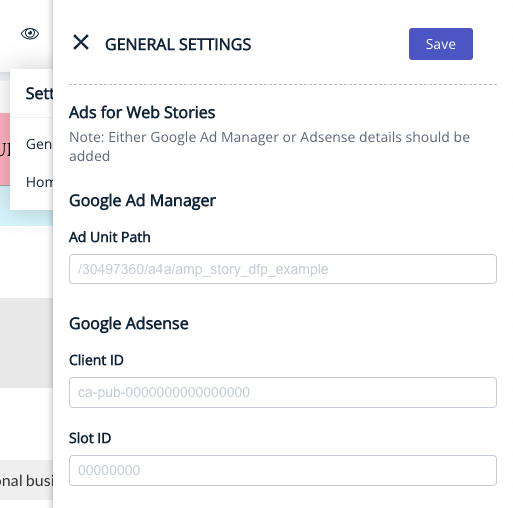
Feature: Support for AdSense on visual stories.
Now, we support AdSense Ads on visual stories as well. Before this update, only targeted Ads were rendered on web stories. Now, enter either Ad Manager or Ad sense details by going to Settings ⇒ General Settings ⇒ AMP Configuration in Pagebuilder.
At this point of time in PB, both Ad Manager & Ad Sense details can be entered at the same time for Web stories but the priority will be with Ad Manager in this particular case.
Ad requests will be served if there are a minimum of 8 slots in the web story.


Page-Builder Release Note - October 22, 2025
Enhancement: Default Alt Texts for AMP Hero Images
AMP pages now automatically use the story headline as the default alt text for hero images, OG images, and Twitter images when no caption, attribution, or custom alt text is provided.
This ensures consistent SEO behavior across AMP and Non-AMP pages while maintaining accessibility and validation compliance.
Enhancement: Support for Custom AMP Styles
Publishers can now add custom CSS through AMP custom code in Page Builder without facing AMP validation errors.
Multiple style blocks are automatically merged into a single AMP-compatible style tag, ensuring design flexibility while maintaining AMP compliance and page stability.
Steps to Add Custom AMP Styles
- Open Page Builder and navigate to the page you want to edit.
- Go to Settings → General Settings → Manage → AMP Configuration → Insert Custom Code.
- Add your custom CSS inside the AMP section.
- Click Save.
- Publish the page.